
Red Hat Openshift AI (Feature Store) - Part 1
The accompanying Git repo for any artifacts mentioned here is located at:
https://github.com/kcalliga/feature_store_feast_article
Overview
Feature Store which is known as Feast (upstream) is described as an interface between machine learning models and data. It is composed of two foundational components: (1) an offline store for historical feature extraction used in model training and (2) an online store for serving features at low-latency in production systems and applications.
At a very high-level, for easier understanding, think of features as columns, fields, or attributes in a spreadsheet/database table. These features are measurable values that can be used in a bunch of machine learning workflows. For a majority of use-cases, these fields will be used in predictive modeling but there are more advanced use-cases such as RAG (Retrieval Augmented Generation) and Document Question-Answering.
A simple example that is used all the time is determining whether a credit card transaction is fraud or not. In a sophisticated machine learning model, a combination of features will be used collectively to determine fraud or not. These might use a credit card customer's normal spending habits and mark specific deviations from that (user location, dollar amount, merchant , etc.) to flag a transaction as possible fraud. Stock market predictions or whether a credit card applicant is trustworthy are some other widely used examples.
When a data scientist first gets access to raw data, they typically have to load that data into a data frame, clean it, and perform complex transformations to create new features. This process—often referred to as feature engineering—is time-consuming and, in most organizations, highly redundant.
If multiple data scientists want to work with the same raw data, each person ends up running their own independent ETL (Extract, Transform, Load) operations. This is inefficient from a labor standpoint, but it also places a massive, unnecessary burden on your infrastructure. You end up with "Compute Sprawl," where identical, heavy processing jobs are running multiple times, consuming excessive storage and CPU resources. Furthermore, without a central point of truth, there is a high risk that different individuals will transform the same raw data using slightly different logic, leading to inaccurate or inconsistent model results.
For a better understanding of data science terms in general, look at this blog post.
https://myopenshiftblog.com/red-hat-openshift-ai-intro-data-science-and-mlops-fundamentals/
Now, let's present some of the objects that are associated with Feature Store and how this relates to OpenShift/RHOAI in general.
In the installation and demonstration that follows, I will provide a simple example that works with these concepts that is not too long but enough to get your feet wet.
Architecture/Components
In the Kubernetes/Openshift world, only one object/CRD is exposed. This object is the FeatureStore. There are some other components that get instantiated when the FeatureStore is created but these are not managed by OCP UI directly (they are utilized through Python SDK). These are listed below under "logical components" section. You will see how this works when the install/configuration is performed later.
Here are some other high-level concepts that should be understood.
Infrastructure Components
- Offline Store: A historical archive typically stored on cost-effective S3 storage, used by data scientists to extract large batches of data for training models on past patterns.
- Online Store: A high-speed cache, often powered by Redis, that stores only the most recent "snapshot" of feature values to provide low-latency data for real-time model predictions (inference).
- Registry: A persistent database that acts as the central "Source of Truth." It stores every feature definition, entity, and transformation logic you create. This metadata is what the Red Hat OpenShift AI (RHOAI) dashboard queries to visualize and display your feature catalog directly within the web console.
Logical Components
- Data Sources: The raw connection points—such as Parquet files in S3 or tables in a database—that contain the underlying information before it is transformed into features.
- Entities: The unique "Primary Keys" or subjects of your data (e.g.,
customer_idordriver_id). They serve as the lookup index used to retrieve associated features instantly. - Features: The specific, measurable attributes associated with an entity, such as "average purchase amount" or "current location," used as inputs for machine learning models.
- Feature Views: The logic and schema that maps specific Features to their Data Sources. They define the transformations and the refresh frequency for a related group of features.
- Feature Services: A production-ready logical grouping of Feature Views. These allow a specific model to request a complete bundle of required features through a single API call to the Feature Server.
- CronJob: A scheduled automated task that moves data from the Offline Store to the Online Store—a process known as Materialization. It ensures your high-speed Redis cache remains refreshed with the latest historical "truth" so that the machine learning model has access to up-to-date information during real-time inference
Interacting with the Feature Store: The Feast CLI
While Red Hat OpenShift AI manages the background services via the FeatureStore object, data scientists and developers primarily interact with the store using the Feast CLI. This command-line interface allows you to manage the logical components defined in your code and verify that the data flow is healthy.
The most critical commands you will encounter during setup and day-to-day operations include:
feast init: Used to bootstrap a new feature repository with a template directory structure.feast plan&feast apply: Much liketerraform plan/apply, these commands allow you to preview and then commit changes to your feature infrastructure. In the RHOAI world, the operator often handles the "apply" step automatically by watching your Git repository (if Git is used).feast materialize-incremental: This is the engine behind the CronJob we discussed earlier. It moves the latest data from the Offline Store to the Online Store so it’s ready for inference.feast get-online-features: A vital troubleshooting command that allows you to manually verify that a specific entity (like a customer ID) has the correct, high-speed data loaded in the Online Store.
Installation
Here are some high-level steps to get a basic working instantiation of FeatureStore in Openshift (RHOAI). The FeatureStore enabled here is just a sample driver database.
- Edit the datasciencecluster object and ensure feastoperator is set to "Managed" as shown below.
oc edit datascienceclusterMake the modifications
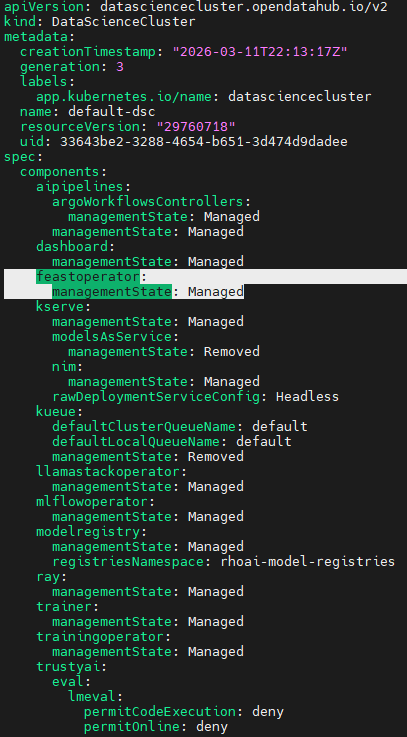
- To verify that the operator got enabled, go to "redhat-ods-applications" namespace/project and check for existence and runningstate of feast-operator-controller.
oc get po -n redhat-rds-applications|grep feast
oc get feastoperators
- Now, we will instantiate a FeatureStore object. For a comprehensive list of all of the settings, check out this file on my Github.
https://github.com/kcalliga/feature_store_feast_article/blob/main/fully_populated_example.yaml
While production environments use massive data lakes for the Offline Store, for our demonstration we are using a file-based store to simulate the historical archive. Redis is used for the Online Store to provide the sub-millisecond response times required for live predictions.
apiVersion: feast.dev/v1
kind: FeatureStore
metadata:
 name: myopenshiftblogdemofeaturestore
 labels:
   feature-store-ui: enabled # This is needed for RHOAI dashboard to show FeatureStore objects in menu
spec:
 feastProject: myopenshiftblog
 services:
   registry:
     local:
       path: registry.db
       server:
         restAPI: true
   offlineStore:
     persistence:
       file:
         path: offline_store.db
featurestore-example.yaml
Here is the applied configuration based on some options the operator adds in based on the minimal example shown above.
   applied:
    cronJob:
      concurrencyPolicy: Replace
      containerConfigs:
        commands:
        - feast apply
        - feast materialize-incremental $(date -u +'%Y-%m-%dT%H:%M:%S')
        image: registry.redhat.io/openshift4/ose-cli@sha256:bc35a9fc663baf0d6493cc57e89e77a240a36c43cf38fb78d8e61d3b87cf5cc5
      schedule: '@yearly'
      startingDeadlineSeconds: 5
      suspend: true
    feastProject: myopenshiftblog
    feastProjectDir:
      init: {}
    services:
      offlineStore:
        persistence:
          file:
            type: dask
      onlineStore:
        persistence:
          file:
            path: /feast-data/online_store.db
        server:
          image: registry.redhat.io/rhoai/odh-feature-server-rhel9@sha256:d64ef2c03552dbc992baf38c1a9fb6411b2f5d6ab0db71810d659164597b7eaa
          tls:
            secretKeyNames:
              tlsCrt: tls.crt
              tlsKey: tls.key
            secretRef:
              name: feast-myopenshiftblogdemofeaturestore-online-tls
      registry:
        local:
          persistence:
            file:
              path: /feast-data/registry.db
          server:
            grpc: true
            image: registry.redhat.io/rhoai/odh-feature-server-rhel9@sha256:d64ef2c03552dbc992baf38c1a9fb6411b2f5d6ab0db71810d659164597b7eaa
            restAPI: true
            tls:
              secretKeyNames:
                tlsCrt: tls.crt
                tlsKey: tls.key
              secretRef:
                name: feast-myopenshiftblogdemofeaturestore-registry-tls
      ui:
        image: registry.redhat.io/rhoai/odh-feature-server-rhel9@sha256:d64ef2c03552dbc992baf38c1a9fb6411b2f5d6ab0db71810d659164597b7eaa
        tls:
          secretKeyNames:
            tlsCrt: tls.crt
            tlsKey: tls.key
          secretRef:
            name: feast-myopenshiftblogdemofeaturestore-ui-tls
  clientConfigMap: feast-myopenshiftblogdemofeaturestore-client
appliedconfiguration
- Find the featurestore pod and run "feast apply"
oc get po|grep myopenshiftblog
oc rsh feast-myopenshiftblogdemofeaturestore-6ddfc778dd-hrqxkRun "feast apply" on the terminal
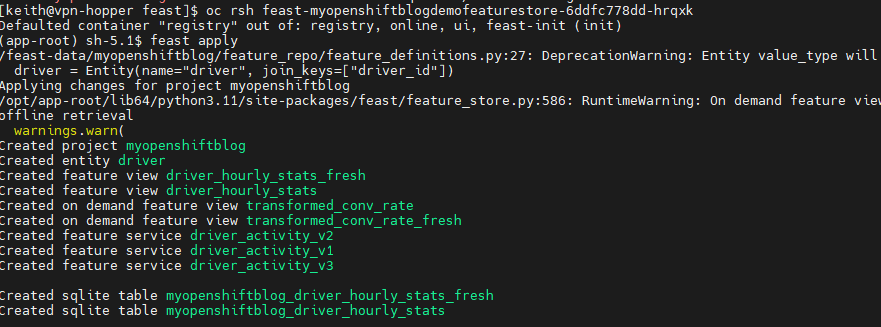
NOTE: Running the "feast apply" command will not be necessary on the next release. Alternatively, you could run the "feast apply" command through a Cronjob to get around this issue for now.
- Now, let's see if the featurestore objects show up on the GUI.
If you are logged in as the kubeadmin user, you may need to click on the specific project associated with the featurestore first.
In my environment, the project is called "keith"

Simply click on "keith" to change the focus/perspective.
Now, go to Develop and Train --> FeatureStore --> Overview
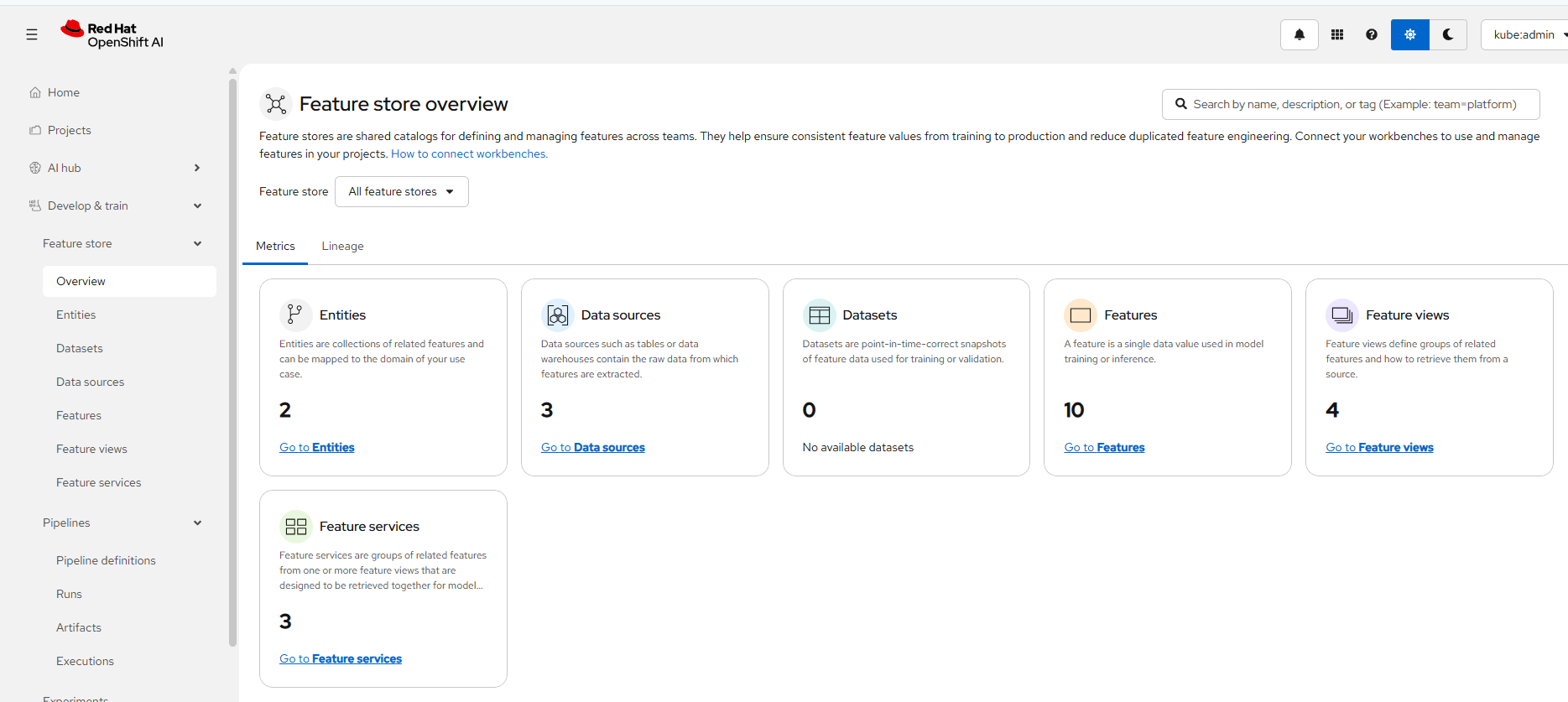
You should see all of your FeatureStore objects in this view.
I am going to conclude the article at this point but we will be ready for a few walkthroughs in the follow-up article. In that article, I will demonstrate how to work with FeatureStore in a workbench and possibly demonstrate the materialize cronjob, offline/online store, and an inference model.
References
https://github.com/feast-dev/feast/ - Official GitHub repo
https://docs.redhat.com/en/documentation/red_hat_openshift_ai_self-managed/3.3/html/working_with_machine_learning_features - Official Red Hat documentation
https://feast.dev/blog/ - Official Feast Blogs
https://github.com/feast-dev/feast/tree/master/examples - Example workflows
Miscellaneous Red Hat Articles
https://www.redhat.com/en/blog/feast-open-source-feature-store-ai
https://www.redhat.com/en/blog/feature-store-front-end-all-your-ai-data-pipelines
https://docs.redhat.com/en/documentation/red_hat_openshift_ai_self-managed/3.3/html/working_with_machine_learning_features/index
https://docs.redhat.com/en/documentation/red_hat_openshift_ai_self-managed/3.3/html/working_with_machine_learning_features/index
My thanks to some of the development team on looking this over and giving me some pointers.